

Setup Guide
Everything you need to install, configure, use, and manage PortalPilot with your HubSpot account.
What is PortalPilot?
PortalPilot is a HubSpot portal health analyser that helps RevOps professionals understand and improve their CRM configuration quality. It connects to your HubSpot account via OAuth, analyses your properties, records, and pipeline configuration, and provides:
- A unified health score across 7 diagnostic categories
- Data quality analysis — fill rates, duplicates, orphan records, and cost-of-bad-data estimates
- Prioritised recommendations with effort/impact scoring
- A Property Library with ~298 expert-vetted templates
- AI-powered tools for property naming, descriptions, and analysis summaries (powered by Mistral AI, EU-hosted)
- Multi-portal management for HubSpot Partners
PortalPilot works with all HubSpot subscription tiers — Free, Starter, Professional, and Enterprise. Features adapt automatically to your portal's capabilities.
Install PortalPilot
Step 1: Create an account
Go to portalpilot.io and sign up with your email address or Google account. You can also sign in if you already have an account.
Most customers should start standard install. Standard access includes user-triggered property changes with preview and rollback. If your procurement policy requires read-only access, you can review read-only access in the Trust Center. Read-only access excludes write permissions, ticket access, and workflow access. Line-item reads remain available. Neither mode requests product, quote, or custom-object permissions.
Step 2: Connect your HubSpot account
From your dashboard, click "Connect HubSpot". You'll be redirected to HubSpot to authorise the connection.
Step 3: Review permissions
HubSpot will show you the permissions PortalPilot is requesting. Review them and click "Connect app" to approve.
HubSpot opens its own approval page. If you belong to more than one HubSpot account, HubSpot first asks which account to connect. The page then lists the access PortalPilot requests; a read-only connection requests no write access. HubSpot can also show an unverified-app confirmation, and a HubSpot Super Admin may need to approve the connection. PortalPilot never sees your HubSpot password.
PortalPilot requests the following permissions:
Both modes read HubSpot owners and assigned-user details so records and activity can be attributed correctly. Ticket diagnostics are unavailable in read-only mode. The scope migration preserves this existing access boundary.
A portal owner can grant optional record permissions from the analysis availability summary. Every analysis then checks those records. Older connections may already hold Leads read access. If a record type is switched off in HubSpot, the analysis skips it and completes everything else.
| Data | Access | Purpose |
|---|---|---|
| Contacts, Companies, Deals | Standard: Read & Write; Read-only: Read | Analyse data quality; make user-approved property changes in standard mode |
| Tickets | Standard only | Support health analysis; ticket diagnostics remain standard-only |
| Leads | Owner-granted read in both modes | Analyse Leads in every analysis once a portal owner turns it on, while Leads is switched on in HubSpot |
| Line Items | Read in both modes | Revenue integrity and deal-value analysis |
| Lists & Segments | Read | Audience health and marketing alignment assessment |
| Users, Teams (optional) & Owners | Users and owners in both modes; teams when available | Sync users and owners and attribute records and activity |
| Goals (optional) | Read in both modes | Compare deals with forecast targets |
| Workflows (optional) | Standard only | Automation analysis for GTM scoring (Marketing Hub Professional+) |
Write permissions are only used for the Property Library and property management features. All write operations are user-triggered (never automatic), include a dry-run preview before execution, and support one-click rollback. Read more on our security page.
Step 4: You're connected
After approving, you'll be redirected back to PortalPilot with your HubSpot portal connected. The availability summary separates HubSpot plan evidence, permissions and object settings.
If PortalPilot asks for owner access on an existing connection, reconnect the same portal through its current connection mode. This updates the HubSpot permission without creating a new PortalPilot portal. Your analyses, recommendations, and tasks are preserved.
Configure your portal
Confirm your HubSpot pricing model and plan in portal Settings. The availability summary shows which object types could be analysed and why others are unavailable.
| Setting | How it works |
|---|---|
| Subscription tier | Confirm your pricing model and plan in Settings. Plan evidence is separate from permissions and HubSpot object settings. |
| Analysis scope | Base CRM objects are included automatically. Leads is included in every analysis once a portal owner turns it on. |
| Team members | HubSpot users are synced automatically — invite colleagues to collaborate on recommendations |
| PortalPilot plan | Optionally upgrade your plan for AI tools, RevOps Hub, and multi-portal management |
If your HubSpot subscription changes, confirm the new plan in portal Settings. Your next analysis checks current permissions and object settings; manually confirmed plan details remain yours to update.
Use PortalPilot
Run your first analysis
Click "Run Analysis" on your connected portal. The analysis takes 30–60 seconds depending on portal size. You'll see progress through each stage: connecting, fetching properties, analysing, and generating recommendations.
Explore your results
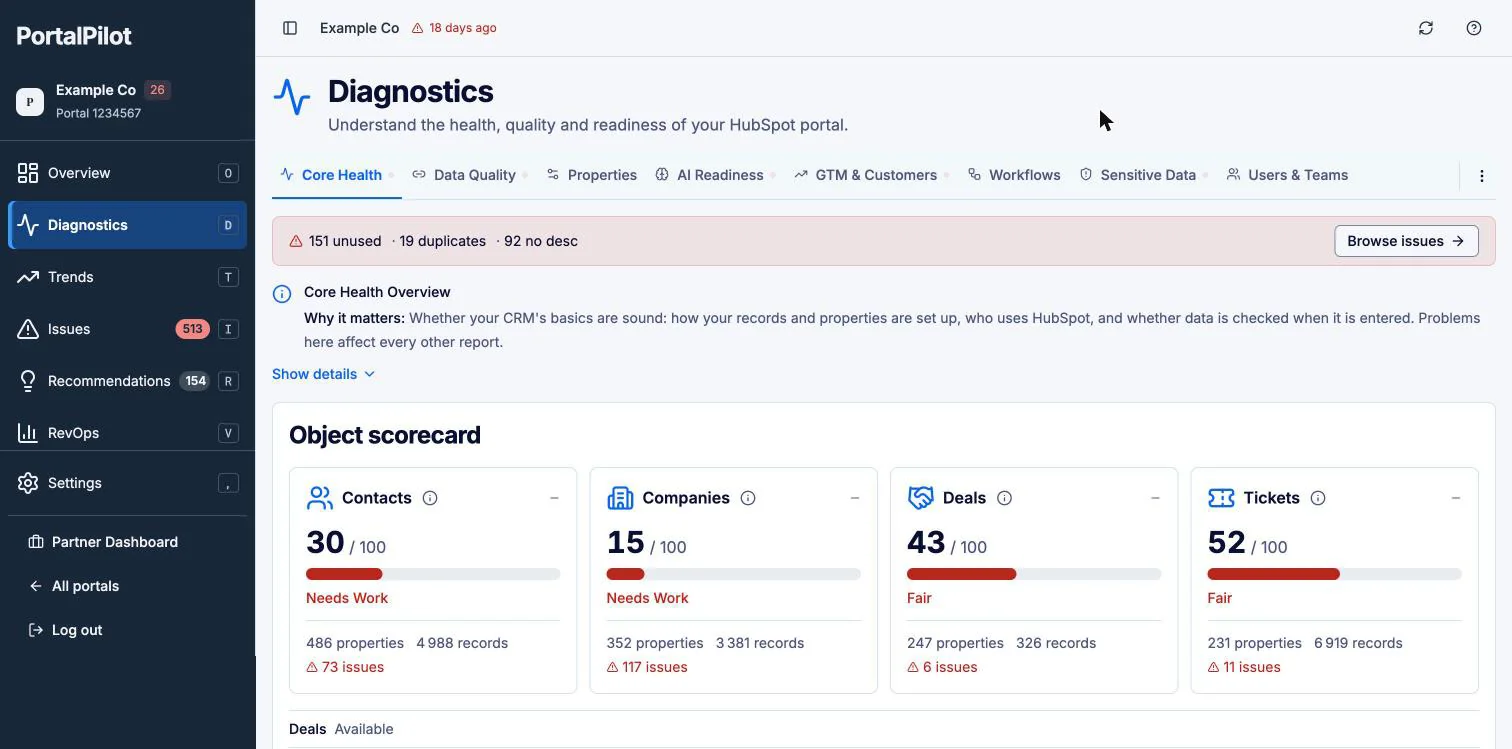
Once the analysis is complete, explore your results across several views:
- Diagnostics — Health score with 7 category breakdowns (Overview, Data Quality, Properties, Pipeline, Activity, GTM, Customer Health)
- Issues — Property-level problems organised across 6 categories with severity indicators
- Recommendations — Prioritised improvement actions with effort/impact scoring and team collaboration
- Property Library — ~298 expert-vetted HubSpot property templates with AI-powered "For You" suggestions
- AI Tools — AI-assisted property naming, descriptions, and analysis summaries (Pro plan)
- RevOps Hub — Deal prioritisation, pipeline forecasting, and revenue analytics (Pro plan)
Track improvement over time
Run analyses regularly to track your portal's health over time. The "What Changed?" feature shows deltas between analyses, highlighting improvements and regressions.
Disconnect a portal
To disconnect a HubSpot portal from PortalPilot:
- Open your PortalPilot dashboard
- Find the portal you want to disconnect
- Click the disconnect option and confirm
What happens to your data
- All cached analysis data in PortalPilot is permanently deleted
- Your HubSpot portal is completely unaffected — PortalPilot never modifies your CRM data during analysis
- PortalPilot asks HubSpot to revoke its access and removes the stored connection either way
- You can reconnect the same portal at any time
Uninstall from HubSpot
To fully remove PortalPilot's access to your HubSpot account:
- Go to your HubSpot account → Settings → Integrations → Connected Apps
- Find PortalPilot in the list
- Click "Uninstall" and confirm
For detailed instructions, see the HubSpot Knowledge Base article on uninstalling apps.
Data impact
In HubSpot, go to Settings > Integrations > Connected Apps, select PortalPilot and uninstall it. This disconnects every PortalPilot connection to that HubSpot account; PortalPilot keeps your saved analyses. Then connect again from PortalPilot with the access you want. HubSpot shows its unverified-app confirmation again, and a HubSpot Super Admin may need to approve the connection. No records, properties, or configurations in your HubSpot account are changed by uninstalling.
Need help?
If you run into any issues or have questions:
- Visit our Help Centre for FAQs, feature guides, and troubleshooting
- Email us at support@portalpilot.io
- Review our Privacy Policy, Terms of Service, and Data Processing Agreement